
Open Whisper is built never to lose a word: the text is pasted at the cursor or, when that cannot work, left on the clipboard with a notification. The last dictation can always be copied again from the menu. This page explains which happens, and why.
Pasted at the cursor
When the transcription is ready, Open Whisper puts the text on the clipboard and sends the paste shortcut to the app in front, as if you had pressed it. So it works wherever an ordinary paste works.
Mac
The paste is ⌘V. Sending it to other apps needs the Accessibility permission, which setup asks for (see First run). Before pasting, Open Whisper also asks macOS what kind of element has the focus, a text field or not, so it does not paste into nothing. It looks at the kind of element, not at what is in it, and it never reads your screen or what you type.
Windows
The paste is CtrlV. Windows needs no permission for it. Before pasting, Open Whisper asks Windows what kind of element has the focus, a text field or not, so it does not paste into nothing. It looks at the kind of element, not at what is in it.
Stay in the field until the text lands.
Your clipboard is put back
After a paste that worked, Open Whisper waits half a second and puts back what you had copied before, as long as the clipboard still holds the transcription. If you copied something else in that half second, it is left alone.
- Only text is put back. If you had copied an image or formatted content, do not count on getting it back.
- When the text stays on the clipboard instead (next section), it replaces what you had copied.
When the text goes to the clipboard instead
Open Whisper does not paste when it can tell the paste would fail or land nowhere. It leaves the text on the clipboard and shows a notification:
Mac
Copied to clipboard — paste with ⌘V.
This happens when:
- the Accessibility permission is off;
- a password field has the focus (macOS's Secure Input is on);
- nothing that takes text has the focus: the Desktop, a Finder window, a web page you are only reading;
- the paste could not be sent, or did not go through within 2 seconds.
Windows
Copied to clipboard — paste with Ctrl+V.
This happens when:
- the window in front runs as administrator, or Open Whisper cannot tell whether it does: Windows does not let an app send keys to a window with higher rights;
- a password field has the focus;
- the element with the focus does not take text;
- the paste could not be sent, or did not go through within 2 seconds.
The notification is the same whatever the reason. Click where you want the text and paste it, or use Retry Last Transcription (below).
Turn on auto-paste on the Mac
If you skipped the Paste step during setup, every dictation waits on the clipboard. Settings says so under the shortcut: Automatic paste: off — the shortcut works, and the text goes to the clipboard for you to paste with ⌘V.
- Press Turn on… in Settings, or choose Enable auto-paste… in the menu.
- In System Settings → Privacy & Security → Accessibility, switch Open Whisper on.
- If the text still goes to the clipboard, quit Open Whisper and open it again: macOS may apply the permission only to the app opened afterwards.
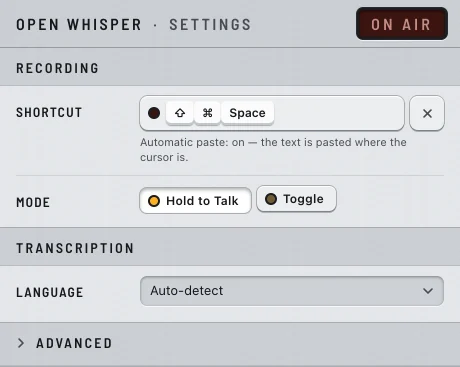
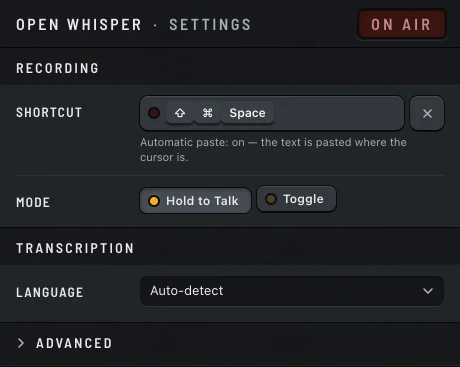
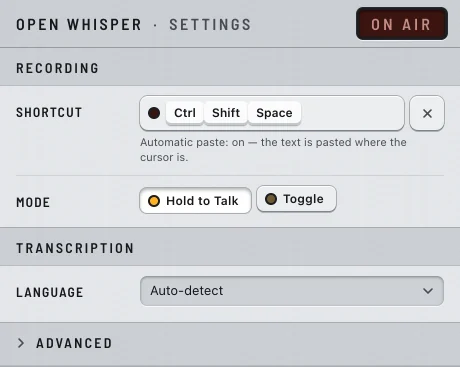
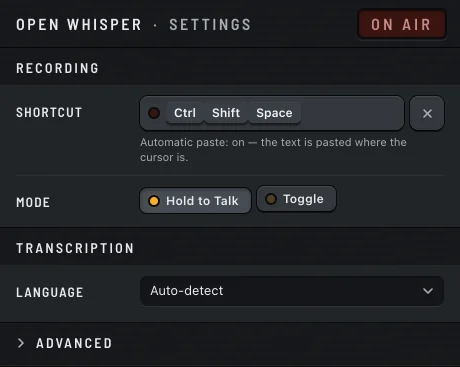
When it is on, Settings says Automatic paste: on — the text is pasted where the cursor is.
On Windows there is nothing to turn on: auto-paste needs no permission.
Apps that do not say what has the focus
Some apps do not tell Open Whisper what has the focus. On the Mac, those are Chrome, VS Code, Slack, Discord and other apps built on Chromium. Open Whisper pastes into them anyway, or it would stop working there.
If no text field had the focus in such an app, the paste lands nowhere and your old clipboard is put back: the text is neither at the cursor nor on the clipboard. Get it with Copy Last Transcription (below).
Copy or retry the last dictation
Two items in the menu bring the last dictation back:
| Item | What it does |
|---|---|
| Copy Last Transcription | Puts the last dictation's text on the clipboard. Available once a dictation has produced text since Open Whisper started. |
| Retry Last Transcription | Delivers the same text again: pasted at the cursor, or left on the clipboard by the same rules. It does not transcribe again. Available when there is a last text and Open Whisper is not recording or transcribing. |
Open Whisper keeps only the last dictation, only in memory. Quitting forgets it, and there is no history. More about the menu in The icon and its menu.
Windows: clipboard history and sync
Whenever Open Whisper puts dictated text on the clipboard, it marks it to stay out of clipboard history (WinV), out of clipboard sync across your devices, and out of apps that monitor the clipboard. That includes the times the text waits on the clipboard for you: paste it with CtrlV, it will not be in WinV. This keeps what you dictate on this PC. See Privacy.