
Open Whisper is fully usable from the keyboard. These are all the keys it uses, on each platform. Only two work from any app: the dictation shortcut and, while you record, Esc.
The dictation shortcut
| Mac | Windows | |
|---|---|---|
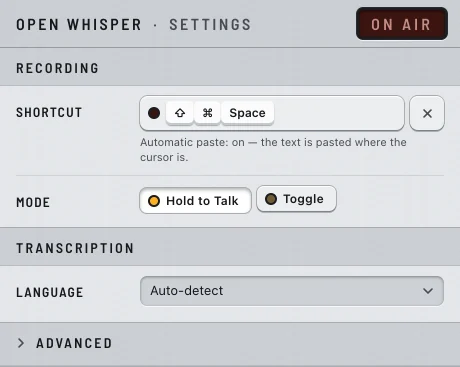
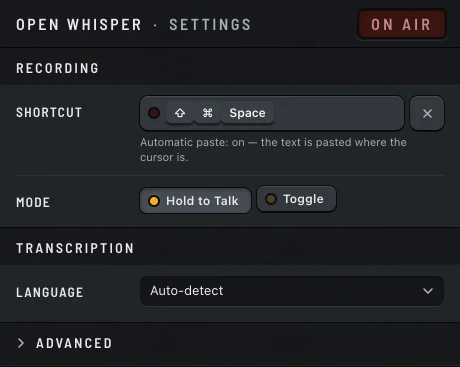
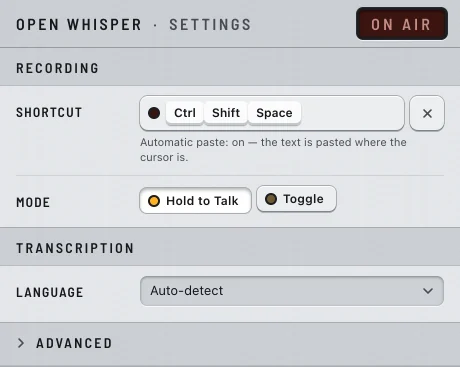
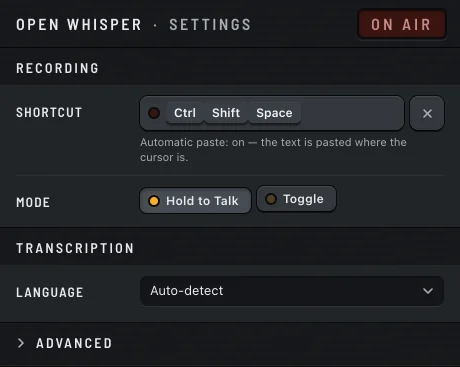
| Default | ⇧⌘Space | CtrlShiftSpace |
| Used instead when your choice is reserved by the system | ⇧⌘D | CtrlShiftD |
| Hold to Talk | Hold the keys, speak, release | Hold the keys, speak, release |
| Toggle | Press to start, press again to stop | Press to start, press again to stop |
The shortcut works with no app in focus, and needs no permission. Change it during setup or in Settings. The key shown beside Start Recording in the menu is always the one really active.
Cancelling a recording
Esc is taken only while Open Whisper is recording. The rest of the time it reaches your apps untouched. Once the recording becomes Transcribing, Esc no longer cancels.
| Mode | Mac | Windows |
|---|---|---|
| Toggle | Esc | Esc |
| Hold to Talk | Esc, or the held keys plus Esc, such as ⇧⌘Esc | The held keys plus Esc, such as CtrlAltEsc for CtrlAltSpace |
Windows
With the default CtrlShiftSpace in Hold to Talk, Esc can't cancel: CtrlShiftEsc is Task Manager. The same goes for a shortcut made of Ctrl alone or Alt alone plus a key (CtrlEsc opens Start, AltEsc switches windows). Release the keys instead, use Toggle mode, or choose a shortcut such as CtrlAltSpace.
Mac
A shortcut that holds both ⌥ and ⌘ can't cancel with the held keys: ⌥⌘Esc is Force Quit. Use Toggle mode, or a shortcut without that pair.
Combinations you can't use
A shortcut needs a modifier: ⌘, ⌃ or ⌥ on the Mac, Ctrl or Alt on Windows. Shift alone doesn't count. On Windows the Windows key can't be part of it.
These belong to the system. If you choose one, Settings says it is reserved and the fallback above is used.
| Reserved | |
|---|---|
| Mac | ⌘Space ⌃Space ⌃⌥Space ⌘Tab ⇧⌘3 ⇧⌘4 ⇧⌘5 ⌘Q ⌘W |
| Windows | CtrlAltDel CtrlShiftEsc CtrlEsc CtrlSpace AltTab AltShiftTab AltF4 AltSpace AltEsc |
A combination another app already uses can't be registered either: Settings says so, and you pick another.
In Settings and setup
| Key | What it does |
|---|---|
| Tab | Moves between the controls |
| Space or Enter on the shortcut | Starts recording a new shortcut; then press the combination |
| Esc while recording a shortcut | Keeps the previous shortcut |
| Delete or Backspace while recording a shortcut | Keeps the previous shortcut |
| Arrow keys on Mode | Switches between Hold to Talk and Toggle |
| ↑ and ↓ on Stop after silence | Adds or removes half a second |
| Arrow keys on the setup steps | Moves to the previous or next step |
Changes in Settings apply at once. There is no Save button.
Closing a window
| Mac | Windows | |
|---|---|---|
| Close Settings, setup, About or the video window | Esc, ⌘. or ⌘W | Esc or CtrlW |
- Closing setup before Done brings it back the next time Open Whisper starts.
- The video window asks first when a transcript hasn't been copied or saved. The transcript is still there when you reopen it.
In the video window
| Key | What it does |
|---|---|
| Enter in Video link | Starts the transcription |
| Esc | Closes the window (asks first if a transcript hasn't been taken) |
In the menu
The menu shows these keys beside its items. They aren't global shortcuts: from other apps, only the dictation shortcut and Esc work.
| Item | Mac | Windows |
|---|---|---|
| Start Recording / Stop Recording | your dictation shortcut | your dictation shortcut |
| Copy Last Transcription | ⇧⌘C | CtrlShiftC |
| Settings… | ⌘, | Ctrl, |
| Quit Open Whisper | ⌘Q | CtrlQ |